Here are timely tips and resources for submitting Winter 2023 final grades in ctcLink, as well as a list of drop-in Zoom support dates if you have questions.
Resources
- Working around the Shoreline website outage
- Direct access to Canvas
- Direct staff/faculty access to ctcLink
- Direct access to the Shoreline Support ZoomRoom
- Direct access to the Shoreline Support Center
- How to Submit Grades
- Support Center article: How do I submit grades in ctcLink?
- Video tutorial: ctcLink Training
- Drop-In Zoom Support with Heather!
- Friday, March 24, 3-4pm
- Monday, March 27, 10-11am
- Tuesday, March 28, 2-3pm
- Shoreline Support ZoomRoom
———————————————————-
Tips for Grades in ctcLink
- Save Grades Often: ctcLink times out after a few minutes of inactivity. If you are timed out of ctcLink, you will lose the grades you have already entered unless you have saved them before you were timed out. If you are calculating grades as you are entering them, you will want to save your grades every few minutes to prevent losing the grades you already entered if you are timed out of ctcLink.
- Save Grades Before Changing Approval Status to Approved: Changing the Approval Status of your grade roster to Approved without first saving the grades you have entered will erase any grades you have entered but not saved. Save your grades before changing the Approval Status from Not Reviewed to Approved.
- Save Approved Status: Your grades are not submitted until you change the Approval Status from Not Reviewed to Approved, and you Save the Approved status.
- You Can Edit Grades After Approved Status is Saved: Prior to Enrollment Services posting grades to students, you can edit grades you have entered and approved by changing the Approved Status back to Not Reviewed, revising the grades you entered in the grade roster, saving the revised grades, changing the Approval Status back to Approved, and then Saving the Approved Status again. Note that is it necessary to Save the grades you submitted in the roster and Save the Approved status.
- Enter Date of Last Attendance: If you enter a 0.0, NP, I, or Z in the grade roster, you will be prompted to enter a Date of Last Attendance for the student using a calendar widget. You will not be able to save and approve your grade roster if a required Date of Last Attendance is missing. For an online class, you may use the date a student last submitted work in Canvas. If the student has never attended class, you may use the first day of the quarter.
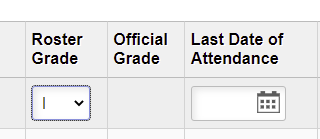
- Official Grade Is Entered for Student Who Withdrew: Enrollment Services will have entered an Official Grade of W for students who withdrew from your class during the W period. You do not need to enter a grade or fill in a Date of Last Attendance.

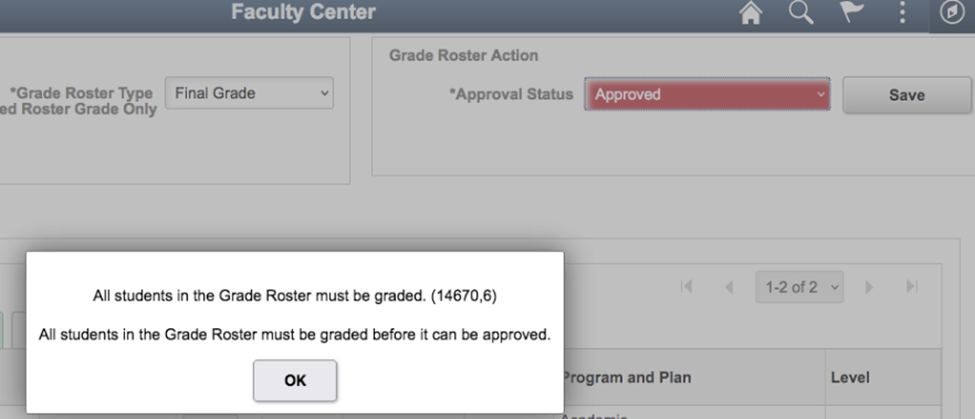
- Error Message When Trying to Save Approved Status: If you see the error message in the screen shot below when trying to Save your grade roster status after changing the Approval Status to Approved, check to make sure you have entered grades for all the students on the roster. You may have missed students whose names are on a second page of the roster. The grade roster shows only 20 students per page. If you have more than 20 students enrolled in your class, look for additional students on a second page.
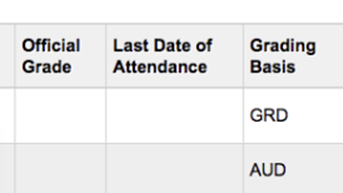
- Official Grade Not Entered for AUD Students: If you have a student who is Auditing your class, you may find that the Official Grade is missing from the grade roster. There should be an N entered in the Official Grade column for a student who is Auditing a class. The screen shot below shows a Grading Basis of AUD with the Official Grade of N missing. Instructors cannot enter an N. If there is no N entered for an AUD student, email Enrollment Services <enrollmentservices@shoreline.edu> with the Class Number and Student ID and ask them to enter the N for the student.
- Students Missing from Grade Roster: Students who were dropped for non-payment may have remained active in Canvas. If you have students who are active in Canvas but whose names do not appear on your grade roster, it is likely that they were dropped for non-payment. You can look up a student’s class schedule in Advisor Center to see whether the student has been dropped from your class: How do I view a student’s academic information? If the student had a plan to pay their balance and they have been participating in the course, Enrollment Services may still be able to add them back to the class. You can ask the student to contact Enrollment Services <enrollmentservices@shoreline.edu> to rectify a mistaken drop for non-payment.
- Questions? Ongoing help is available from the ctcLink support team if you “Submit a request” via the Shoreline Support Center. Drop-In Zoom support is also available at www.shoreline.edu/zoomroom. Dedicated faculty support available on the times listed at the beginning of this message. But you can drop in outside of those hours and the support staff will do their best to assist.
Best regards,
HM
Heather Munsell
Shoreline Community College
Communication studies faculty
ctcLink Faculty Lead

 Day at a Glance
Recent Comments