New to Dropbox?

Get Started Sharing with DropBox! Although there are many ways to share files with people, I’ve recently been asked about Dropbox. You can use Dropbox in any browser, anywhere you have an internet connection. Here’s how:

  1. Go to www.dropbox.com and log in/create an account.
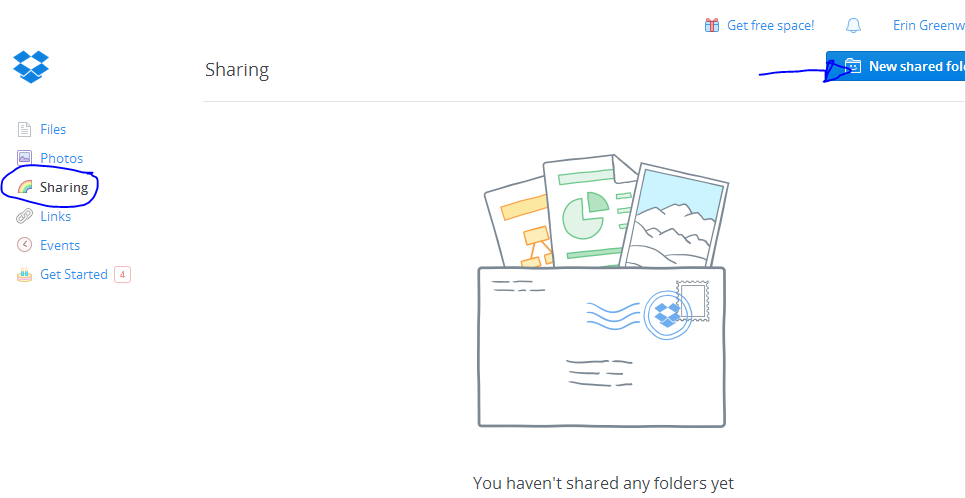
  2. Click Sharing on the left hand side.
  3. Choose New Shared Folder from the right hand side.
    1. If this is your first time, you will be prompted to confirm your identity. An email will be sent to you with a button that says “Verify your email”
    2. Once you verify, click the New Shared Folder button Again.
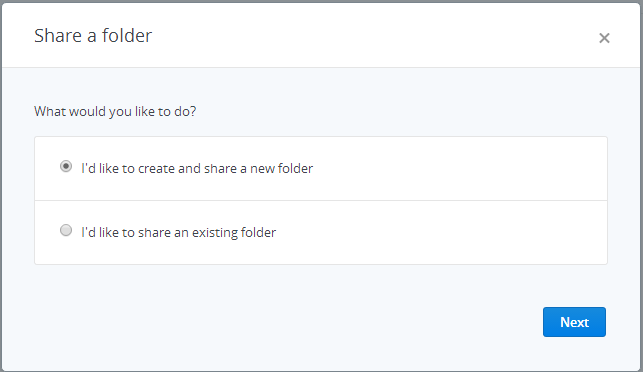
  1. Choose an existing folder or create a new one. Click Next.
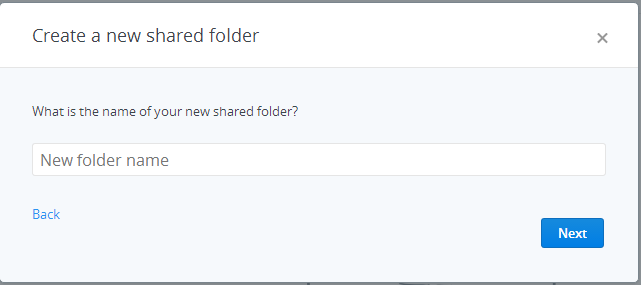
  1. Name your folder. Click Next:
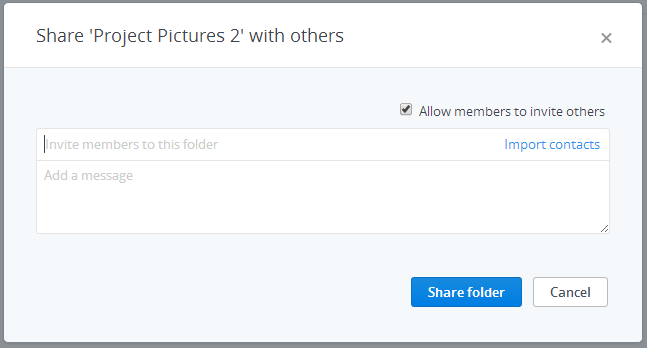
  1. Invite others to share with you. Type in their email addresses and add a message if you want. Then click Share Folder:
  1. Notice the folder you created is now in your Dropbox folder in Windows Explorer:
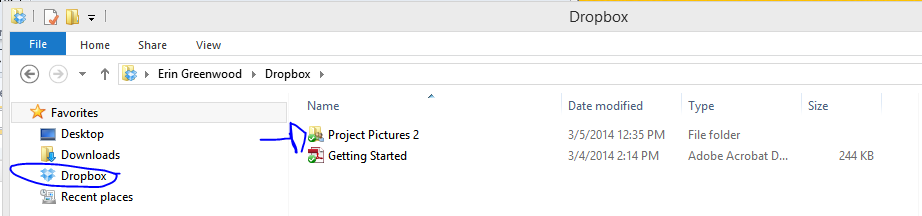
The people you shared the folder with will also have this Dropbox folder.
    Backup Your Files

    Where are the majority of your files saved? For SCC students who log into campus computers using their student username (usually firstname.lastname), the default save location directs to their profile. These files are stored on a server, which has backups should anything bad happen to the server. For staff, the primary save location should be on a network drive. These files also live on a server that has periodic backups made.


    The one place that files should not be saved is the physical hard drive, commonly referred to as the C-drive or C:/. This disk is not backed up, so if something bad happens to the computer, these files could be completely lost.

    My personal experience has taught me to also back up my personal/school files just in case I have to access them outside of my usual environment. For this, there are two options:
    1. Save files to an online storage location, like Google Drive, DropBox, Evernote, SkyDrive, etc.

    • Benefit: Access files anywhere you have an internet connection.
    • Benefit: Works on a variety of platforms, including phones.
    • Con: Storage limits are typically smaller, and there might be a charge to get a larger storage capacity.

    2. Save files to an external drive, like a USB drive or a larger external hard drive.

    • Benefit: You can pick the storage capacity when you buy the device. The storage of USB capacity is constantly increasing and larger storage becomes less expensive.
    • Benefit/Con: The device goes with you where ever you take it. Forgetful types might find this difficult.
    • Con: Things can happen to these physical devices–a magnet could corrupt the files (this can happen if a USB drive is attached to keys!), rain/water could cause damage, and the device could get lost.
    Everyone has their personal preference on file management. Just be sure you have a back up system in place when you don’t save to a protected server.

    Trouble accessing something saved to a campus server? Contact TSS for help! 

    Computer Lab Updates Coming Soon!

    Over spring break, TSS will be working hard to get two computer labs updated: the 4214 lab in the library and the 2329 lab for nursing students.

    The lab in 4214 will be updated to laptops running Windows 8.1. New tables and the ability to share multiple screens onto the larger screen will better facilitate group work and collaboration for classes held in the lab.

    The 2329 Nursing Lab will receive updated PCs that will run Windows 8.1. These newer computers will not support older storage devices like floppy disks. Although there will be a floppy disk reader available in the lab, nursing students will want to begin moving files stored on floppy disk to USB drives.

    Network maintenance scheduled for 2/28

    The K20 NOC has been notified that the SHORELINE-CTC site will be migrated to a new 10G service port at 10 p.m. on Friday, Feb. 28. The networks will be down while the site is migrated.

    The planned time is 1 hour and the network should be operating normally at 11 p.m.

    Update your Devices

    Have you updated your devices lately? Security is a major part of why updates are issued for phones and computers. This week Mac has addressed a serious flaw in security. The fix for users is simple: update your device!


    Mac users especially will want to install updates. Here’s how:
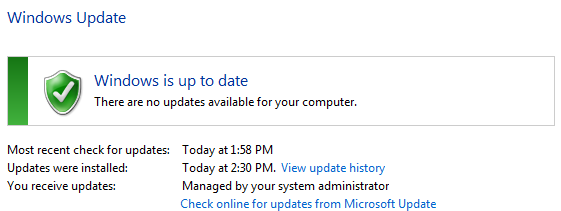
    For PC users running Windows, here is how to check for updates: How can I tell if my computer is up to date? Windows will either alert you about updates that need installed or report that “Windows is up to date”:

    Also, anyone using Windows XP will want to consider upgrading soon. In April 2014, Microsoft will no longer support Windows XP. What does it mean if my version of Windows is no longer supported? In general, your computer will not get updates, which means it will accumulate more and more security risks over time.


    Updating an Android phone varies slightly, but here is the general how to update:
    • Go to Settings
      • Choose About Phone
        • Check for Updates
    For more precise directions, search for the phone model online.