 lynda.com Log on information
Many staff members are wanting to do some training on Lynda.com but seem to be having some difficulty signing into the website. Here are the procedures that we recommend at this time.
Open a browser and in the address line type Lynda.com. In the top right corner you’ll see the words “Log in” so please click there.
In order for the website to know that you are associated with the Shoreline Community College account, we are finding that it is best that you:
1) Click on the “Organization” tab BEFORE you just try to log in.
2) Then log in with your full school email and password
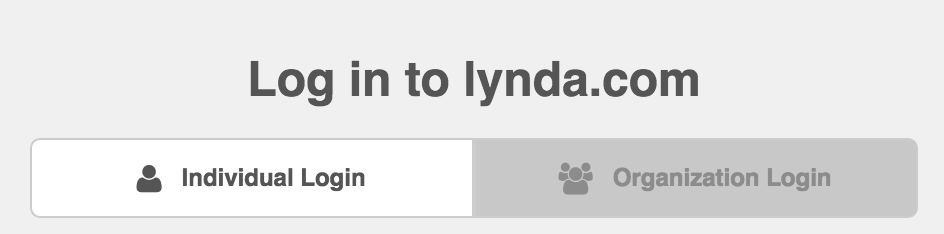
The site says you can log on “either this way OR that.” But we are finding that making sure to put in the Organization first helps link the authentication to our school credentials.
Also not all browsers are the same so the layout may look different. Just be sure to look for something similar to the image below:
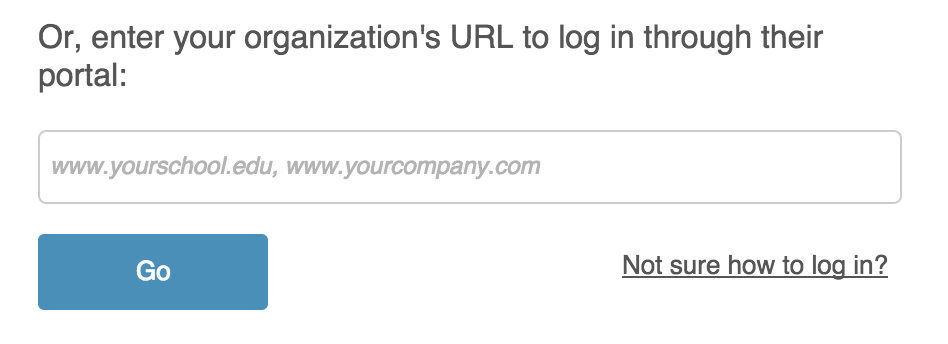
And if it doesn’t work in one browser, try it in another (Firefox, Chrome, Internet Explorer)
Again, 2 steps after clicking the log in tab . . .
Type the organization in first (http://www.shoreline.edu).
Then log in with your full (first.last@shoreline.edu) email and password.
Thank you
Deann Larsen


 Day at a Glance
Recent Comments