Update your Devices

Have you updated your devices lately? Security is a major part of why updates are issued for phones and computers. This week Mac has addressed a serious flaw in security. The fix for users is simple: update your device!


Mac users especially will want to install updates. Here’s how:
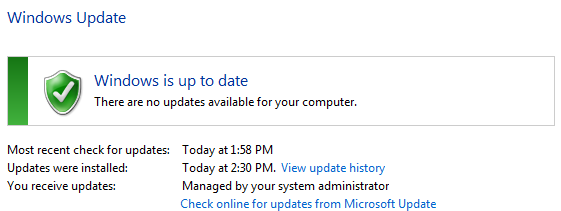
For PC users running Windows, here is how to check for updates: How can I tell if my computer is up to date? Windows will either alert you about updates that need installed or report that “Windows is up to date”:
Also, anyone using Windows XP will want to consider upgrading soon. In April 2014, Microsoft will no longer support Windows XP. What does it mean if my version of Windows is no longer supported? In general, your computer will not get updates, which means it will accumulate more and more security risks over time.


Updating an Android phone varies slightly, but here is the general how to update:
  • Go to Settings
    • Choose About Phone
      • Check for Updates
For more precise directions, search for the phone model online.

Quickly find Contacts in Outlook

This post is for anyone using an Exchange email account and accesses their account through Outlook. Scrolling through the list of all the contacts in Outlook’s Global Address Book can be cumbersome. Here is how you can improve you search for contacts when creating an email.


Step 1: Open the Address Book from a New Message

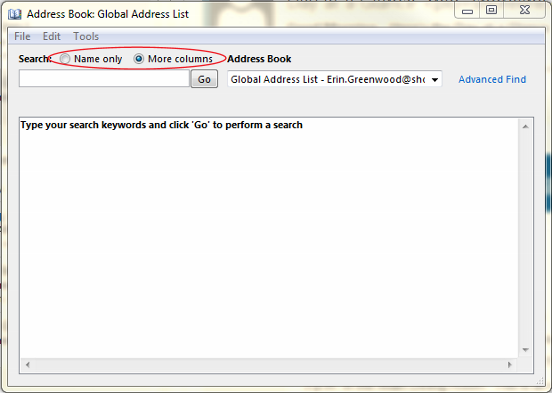
Step 2: Change Name Only to More Columns
  • Use the Advanced Find to narrow down the list of contacts
Step 3: Type in a partial name, department, location
  • Unlike searching with Name Only, More Columns search will not show any contacts until you type something in the search and hit enter/click Go.
Step 4: Select a contact and then Add to the To/Cc/Bcc lines

  • This step is the same as usual. Select a contact from the list and then click the To/Cc/Bcc line to add the contact.
  • If you have multiple contacts to add in the same area, you can select them all at once and then add them to the line:
    • To select multiple contacts at once, select the first contact, hold the Ctrl key on your keyboard and click on each of the other contacts. Let go of the Ctrl key once you have made your selections, and click whichever To/Cc/Bcc line that is appropriate. 
    • If you have a section of contacts all grouped together in the list, click and drag your cursor over the contacts you want to add. A group of contacts can also be added using a Shift Click: Select first contact, Hold the Shift key, and click on the Last contact in the group.

  • Once the contacts have been added, click ok to finalize addressing your email.

    Browser Toolbars out of Control?


    Here is a common conversation I have when helping people with their computers:

    Me: “Wow, you have a lot of toolbars installed. Do you like having those?”
    Them: “No.”
    Me: “Do you know where they came from?”
    Them: “No.”
    Me: “Do you want me to remove those?”
    Them: “Yes, please!”

    If you can relate, roll up your sleeves and lets do some spring cleaning!
    Step 1: Clean up your browsers
    This article shows quite nicely how to remove toolbars from the most prominent browsers. (As of today, these methods worked–keep in mind browsers get updates and instructions might change in the future.)
    Step 2: Don’t install more toolbars
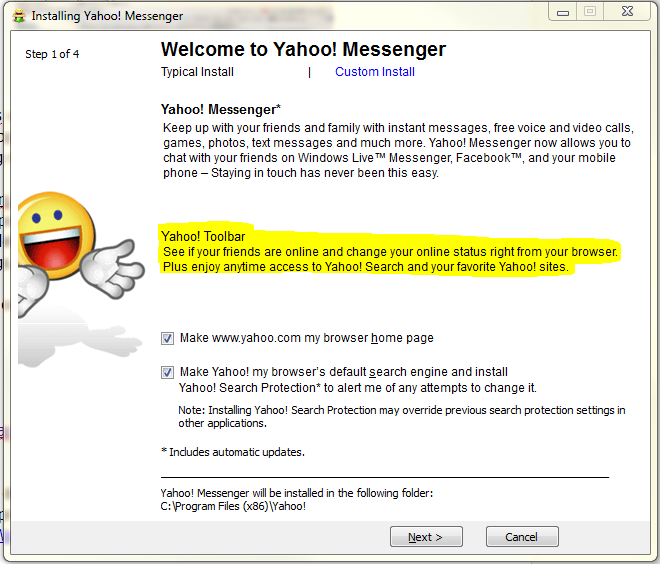
    Where do these toolbars come from? Chances are at some point you installed a program with a toolbar included. Toolbars aren’t always malicious–companies like you to see their name plastered where ever possible. For example, notice that when Yahoo!Messenger is installed, the Yahoo! Toolbar will also be installed: 
    It’s all good if you want to have the toolbars installed. Just be aware of the choices that show up during installation and read through the installation process. Cancel and do some research if wording sounds at all fishy. 
    Step 3: Become more knowledgeable/Dig deeper
    Unfortunately, it is possible that just removing the toolbars isn’t enough. Some toolbars have bad intentions and can slow down the entire system. I found that Enigma Software Group has an extensive list and explanations of malicious toolbars.
    Here is an article that delves deeper into what’s behind malicious toolbars, symptoms you may experience, and preventative actions you can take: Sneak Attack–Those Annoying Toolbars You Never Wanted

    School Email Login Change

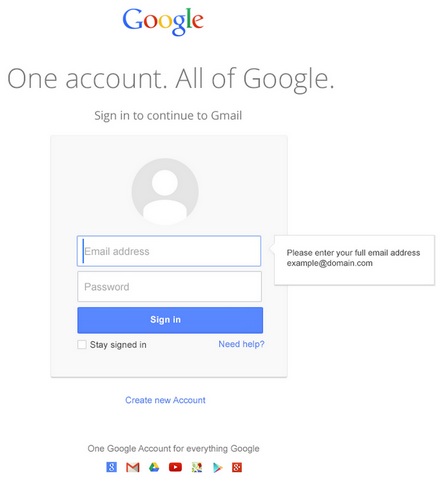
    Google is streamlining their services which means students can expect some changes when logging into their school email. The old address, http://go.shoreline.edu, will still work, but will no longer have the SCC look and feel. The login site will look the same as a personal Gmail account and can be also accessed at http://gmail.com. Most importantly, students will need to use their entire email address to login.


    If you already have another Gmail account associated with your browser, you will need to add an account.


    Working with Data in Tables

    One of the fastest way to get meaning from data in Excel is to insert a table. Here are some tips for getting started with Excel Tables. These tips will work for the 2007, 2010, and 2013 versions of Excel unless stated otherwise. 
    1) Insert a Table:
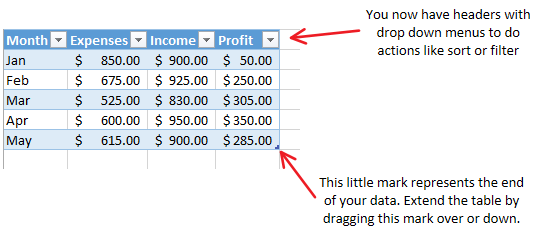
    • Select a cell within your data area. Go to the Insert Tab on the Ribbon and select “Table”

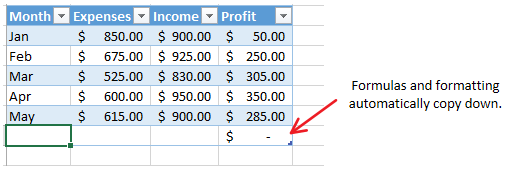
    • Aside from the formatting there are two details to take note of:

    2) Use the Table for fast data entry:
    • Normally in Excel, Tab moves the cell selector right and Enter moves the cell selector down. In a Table, Tab moves to the next cell in the Table. In other words, it will move right until the last column in your table, and then it will move down to the first cell in the next row. If you’re at the end of your data set, a new row is automatically added to the Table.

    3) Get instant data analysis by adding a Total Row:
    • For this next part, a cell within your table must be selected. Go to the Table Tools Design Tab. Check the Total Row box. 

    This example is shown in 2013, but you will still see the same option boxes in the previous versions.
    • Add formulas to the Total Row.

    4) Switch a table back to regular cells.
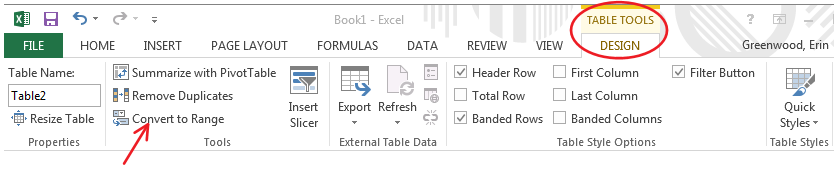
    • Select a cell in your table. From the Table Tools Design Tab, click convert to range.

    Formatting and Total Row stay put, but the other tools from the Table are removed.
    As the Table Tools Design Tab suggests, Excel can do much more with Tables. Check out Microsoft’s Support site more helpful articles and videos. The search feature works rather well if you want help with something specific. For example, type “Excel Tables” or “Excel PivotTables” to continue learning about tables.