WINDOWS 10 AND OFFICE 2016 – NOW AVAILABLE!

Windows 10 is currently being deployed across campus in general computing and instructional labs, smart classrooms, and on system replacements. The latest Microsoft operating system and desktop productivity suite are now available within the Software Center allowing you the flexibility to install on your schedule. Updating your system is only a click away. TSS strongly encourages everyone to upgrade their office computers to Windows 10 and Office 2016 at their earliest possible convenience.

If you presently use a Windows Desktop or Laptop and you are unfamiliar with how to find the Software Center Application on your system, please review this document available on the TSS Intranet page.

If you presently use an Apple iMac, MacBook, etc., please contact TSS directly for additional information.

Should you have any questions, comments or concerns whether your system will accept these updates or simply wish a little assistance getting started, please let TSS know and we will be more than happy to assist.

Windows 10 coming to 4102 Student Computer Lab

Beginning spring quarter, the 4102 Student Computer Lab computers will have been upgraded to the new Windows 10 operating system.

Screen Shot 2016-02-29 at 10.59.13 AMMicrosoft has listened to its users and has combined the best of Windows 8.1 Windows 10 which created a smart mix of the new and the familiar.
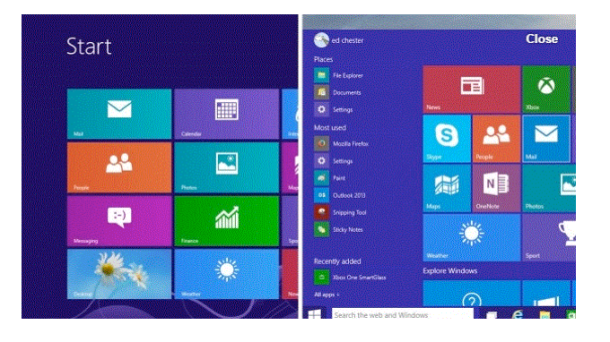

Windows 8.1 had the “Start Screen” with live tiles. Windows 10 brings back the start menu, with the classic options on the left and live tiles on the right.

Screen Shot 2016-02-29 at 10.58.13 AM
If you’d like more information you can visit “lynda.com” & watch: Windows 10 Tips and Tricks to familiarize yourself with the innovations.

Open a browser and in the address line type lynda.com.

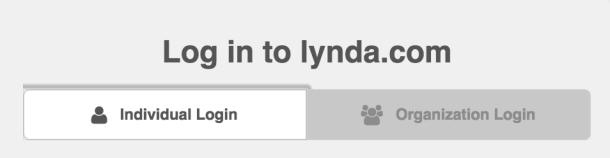
In the top right corner you’ll see the words “Log in”
Screen Shot 2016-02-29 at 11.00.40 AM
Please click there.

1) Click on the “Organization” tab BEFORE you just try to log in.

         Type: http://www.shoreline.edu

2) Then log in with your full school email and password

Students = user name@go.shoreline.edu & password

Faculty/Staff = user name@shoreline.edu & password

TSS Message Regarding Windows 10 and VPN

windows10
Please ensure you read and understand all the processes involved prior to upgrading any software or hardware. Always perform a backup just in case. Technology Support Services may offer advice, but cannot support personal systems, devices, or software
.

Quite a number of staff have become Win10 curious and are looking to make an upgrade. Most applications, configurations, etc. will migrate successfully (sometimes kind of slowly) to Windows 10. Some of your older programs that would not run in Windows 8, but would in Windows 7, will more than likely be Windows 10 friendly and work.

Windows 10… For the win?!?
Those who are looking to upgrade your personal systems to Windows 10 and use the SCC VPN, it is recommended you consider waiting to upgrade until the new VPN solution is announced; or at the very least complete the clean install upgrade if moving to Windows 10.

The new VPN solution should be announced soon. We will keep you advised. Take some time and visit this page to help you decide which way works best for you.

Making the move…
If you decide to make the move, it is advised you proceed with a clean install. This involves making sure you back up all your data and have access to your applications for reinstallation prior to doing the upgrade. (Do you have the install disks for your older software?) It also does not always allow for a roll back in the event the upgrade fails. The clean install removes all configuration settings, data, and programs. This is the method by which the college’s VPN Client, upon reinstallation, will successfully work.

However, you have chosen the in-place upgrade route. Completing an in-place upgrade will require additional configuration steps that may not work for you. You can find more information here.

Windows 10…for the loss…Now what do I do?
Fortunately, should the upgrade process misfire and result in an unusable system, or you simply decide you do not like Windows 10 and want your old system back, in most cases you can roll back into your previous configuration.

You have 30 days from the point of installation to return to your previous operating system. Visit this page for how to complete this process.

Again, the Shoreline Community College TSS Department cannot offer support to your personal devices.

Tips for Using Windows 10 on the Smart Classroom Computers

windows10TSS replaced 60 smart classroom computers over the summer and upgraded all smart classroom computers to Windows 10.  Windows 8 was such a radical overhaul of Microsoft’s desktop operating system that may people avoided the upgrade. Windows 10 looks and functions much more like the Windows 7 that most people are familiar with, but there are a few differences. Most notably, Microsoft now requires that accounts have passwords. The guest account username and password for the smart classrooms is on a sticker on the keyboard and/or monitor. Otherwise you can login with your credentials as before. TSS staff will be out and about tomorrow morning (Wed., Sept. 23) to provide assistance with the smart classroom equipment. The TSS help desk can be reached at x5872 or tss@shoreline.eduBelow are a few tips you may find useful:

To login to Windows enter your credentials at the login screen.  If someone else is already logged in but the screen is locked select “other user” at the lower left hand side of the screen to enter your credentials.

To logout click on your username at the top of the start menu.  You can also choose to login as a different user from there if desired.

To shut down or reboot the computer click the power icon at the bottom of the start menu.

Here are some useful short cuts.  These involve key combinations (+) that include the “Windows” key which is the key on the lower left side of the keyboard with the windows symbol on it.

Windows logo key + D = Display the desktop/return to previous view toggle.

Windows logo key + X = Open the Quick Link menu (same as right click on start menu icon).

Windows logo key + E = open file explorer.

Windows logo key + L = Lock your PC or switch accounts.

See more short cuts here