Lynda.com has your back

lyndalynda.com is a leading online learning company that helps anyone learn business, software, technology and creative skills to achieve personal and professional goals. Through individual, corporate, academic and government subscriptions, members have access to the lynda.com video library of engaging, top-quality courses taught by recognized industry experts.
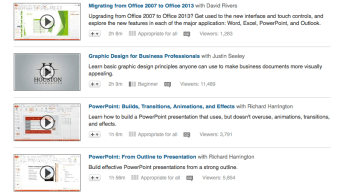
lynda2This resource is available to all Shoreline Community College faculty and staff members.  Use your staff email account and your password to log on.  Check out Lynda.com today.

For questions or more information, contact Deann Larsen, Student Computer Lab Manager 4102

Tip for logging into Respondus “Lockdown Browser”

Here is some great information for students about logging into the Respondus “Lockdown Browser” on campus. This browser is designed for students taking online tests and “locks” them out of using other applications or web browsers until the test is completed.

For more information on this program, contact eLearning or TSS.


respondus

Respondus Lockdown Browser is currently installed in the 4102 student lab, the 4214 lab and the reference computers. To access Respondus, first log in to your student account not “guest”. Second, make sure you do not have other web browsers open or you will have to close and retry. Third, look for a shortcut icon on the student desktop that looks like the one to the right.

The new software version does not have the word “Respondus” on the icon which can be a bit confusing. From the desktop once you double click to open the program, you will also need to choose “Canvas Shoreline Community College” by selecting the down arrow on the choose server window.

From the start screen with the apps, you can click the down arrow at the bottom right side of the screen to load all the current apps. Then scroll over (or touch the screen to slide to the left) and look for the program “Respondus”. There you will again see the same icon as pictured above. (Lockdown Browser).

4102 Student Computer Lab

deannHello SCC, I’d like to introduce myself. My name is Deann Larsen and I am a new employee to the TSS Department as Student Lab Manager. I started October 8 so I am still getting my feet wet (so to speak) but I am here to help you 8 a.m. to 5 p.m. most days of the week.

The Student Lab – 4102  is open:

  • Monday – Thursday 7:30 a.m. – 9 p.m.
  • Fridays 7:30 a.m. – 4:30 p.m.
  • Closed weekends however the library main floor is open noon-6 p.m. Sat & Sun.

The TSS department upgraded this lab over the summer with new Dell PC’s as well as a few iMac’s.  To log out of your account please click the Ctrl/Alt/Delete key’s and then click “sign out”.  You do not need to turn off the power to the computers!

I’d like to remind you that this lab is for everyone on campus and to be respectful of the rules and etiquette which makes it fair to everyone who visits.

If you have trouble printing, accessing your account, or just need some general help, don’t hesitate to ask. I’ll do my best to get your situation resolved or give you the information you need.

Don’t forget, if you think you have left something valuable in the lab, please check with my “lost and found”. Jump drives I will set on my desk with a note of the date found. If it is yours please feel free to pick it up.   After a week it will go in my box.  Keys and cell phones are turned in to security as soon as we find them so always look there for those lost items.

Thanks,

Deann

Be careful!

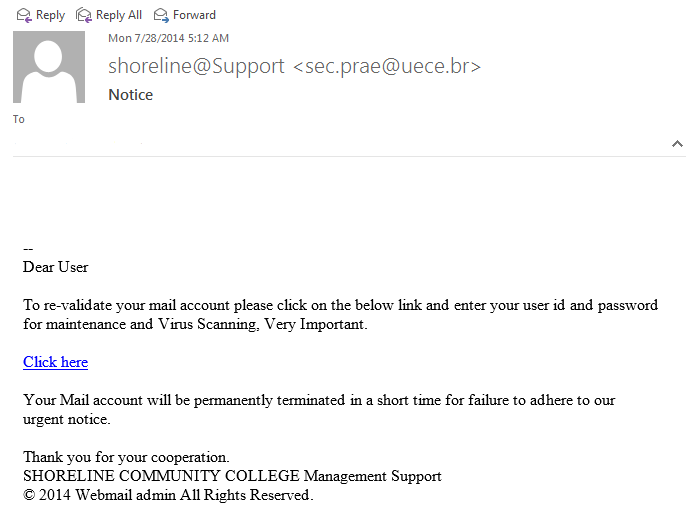
emailJust a friendly reminder to not open suspicious looking emails or click on any of the links in them! If you are unsure about a message please contact TSS by email or at x5872.

Spam messages will even try to include Shoreline Community College in the message. Don’t be fooled!

If you have opened a message, clicked a link or filled in any personal information from a suspicious message, please contact TSS right away.

Summer Lab Updates

Next week, 1302 and 1308 will get updated to Windows 8.1 and Office 2013.

It is highly advised that instructors who teach in those classrooms become familiar with Windows 8.1. Please check out the videos on Windows 8.1 on Lynda.com.

Here are instructions for how to log into Lynda.com