Day 1: Common Access Questions in ctcLink

Hi Everyone,

We are off and running with ctcLink!  We have already gotten some very good questions thus far and wanted to share the most common in case you or anyone on your team have questions after you activate your account…

If you missed the popup box that contained your new ctclink ID during the account activation, but the system says your account is activated, you can use our ctcLink ID look up tool to look it up using your old SID.

My profile details are wrong / missing. What should I do?

You can review and update your personal information using the Personal Details tile in Employee Self Service. This includes information such as:

  • Address
  • Contact details
  • Preferred Name

**Please ensure your Emergency Contact information is correct**

I work for multiple colleges. Why can’t I see Shoreline info?

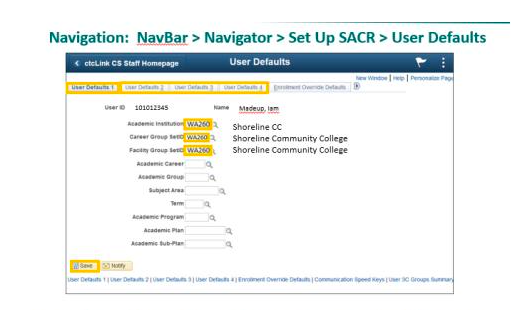
This is a common issue for folks who have already set up their preferences with another college.

Campus Solution users can set up their Shoreline preferences using these User Defaults instructions: https://ctclinkreferencecenter.ctclink.us/m/79784/l/1302449-9-2-campus-solutions-user-defaults
I’ve clicked on the HCM tab, but I don’t see my Time Tile. What do I do?

Please use Live Chat and the Drop-in Zoom sessions to discuss with our support team. They may ask you to submit a ticket via support@shoreline.edu.

Permissions – Dude, where’s my screen?

Please troubleshoot your access issues:
Talk to co-workers to compare access
Check out articles in Technical Support Center
Use Live Chat and Drop-in Zoom sessions

Once confirmed missing access to screens/tasks in ctcLink
Please work with your supervisor and ask them to submit a request via Security Change Request Form.  Include as much info as possible including Navigation path and other info discovered in troubleshooting such as coworker with access

If you still have questions, please…

Contact Technical Support at https://support.shoreline.edu/hc/en-us. Use the chat feature to get real-time support.

ctcLink Employee ctcLink Account Activation and Time Sheet Submission

Hi Campus Community,  

The time has come for you to activate your ctcLink account!! Access Account Activation Tutorial here. 

Attention Hourly and Classified Employees & Supervisors: Timesheet Creation & Submission   

  • Timesheets are due tomorrow March 1 by 10am! Join us to work step-by-step to activate your ctcLink account and then create and submit your timesheet. 
  • 2/28/22 3:00pm-4:00pm via Zoom: https://us02web.zoom.us/j/88354422244 
  • 2/28/22 4:00pm-5:00pm in person, computer lab 1304 
  • 3/1/22 8:00am-9:00am via Zoom: https://us02web.zoom.us/s/85740222949 
  • 3/1/22 9:00am-10:00am in person, computer lab 1304 

Key Dates and Timelines: 

(Click here to view all important dates)  

  • February 28th – March 4th: Employees will activate their ctcLink accounts (instruction link at the top of this email) 
  • March 7th – March 16th: Please remind students to activate their ctcLink accounts. To see the ctcLink communications going out to students, please check out the Student Communication Feed

Upcoming Training Sessions: 

All sessions are recorded, and you can view them on our ctcLink SharePoint site. Upcoming training sessions will be posted on the ctcLink Training & Resources page. These training sessions will help you navigate and understand ctcLink.    

Need assistance with account activation?  

ctcLink Drop-in Support for All Staff – Focus on Account Activation 

Drop in to get help with activating your ctcLink account and have other questions answered. Additional ctcLink drop-in support sessions have been created and can be viewed on the Employee Calendar. 

Zoom Link: https://us02web.zoom.us/j/81837734259 

  • 2/28/22 11:00am-5:00pm 
  • 3/1/22 9:00am – 4:00pm 

If you have questions, please visit ctcLink on our Shoreline website at https://www.shoreline.edu/ctclink/ or our Technical Support Center at https://support@shoreline.edu

Go-Live is here! 

Successful launch of ctcLink!

Dear Shoreline Staff,

Shoreline ctcLink launch teams were working nonstop through the week/weekend and we are affirmed through our state partners for conversion to our new system. We also have assurance that the DG6A group (the 3 WA college’s converting this weekend) went extremely well. It was a huge undertaking by so many people working over this last three years. 

For many of you this might appear to be an undertaking over this last 6 months, and with increasing assistance from our state agency project team, our staff put everything they had into making sure the go-live went according to plan. With ctcLink, our students, faculty and staff will have access to information they need when they need it, with a broad range of mobile friendly self-service tools.

As we work to further implement all components of this new system, the College ctcLink team will continue to provide you information regarding resources and training to ensure you have the best experience possible. Please expect continued weekly updates with information that matters to you. 

Congratulations to all of our Shoreline conversion teams, we are officially launched! 

Phillip J. King, Ed.D.

Vice President for Student Learning, Equity, and Success

Shoreline Community College

pking@shoreline.edu

Change: Students will be able to use personal email addresses in ctcLink

The change

Because of the design of ctcLink, students may set their own preferred email address for communication with the college. This could be a personal email address such as a Hotmail or Gmail account, or an email address provided by another college. Staff and faculty should be aware that this will be legitimate for students after we switch to ctcLink and the use of go.shoreline.edu email addresses is no longer required for students.

How will this work?

  • When the student applies to the college they specify their preferred email address. They can change it anytime in ctcLink student self-service.
  • Messages sent to the student by ctcLink that originate from any college will go to their preferred email address.
  • Messages sent from Shoreline Canvas will go to the student’s preferred email address.
  • The student’s preferred email address should show in the class roster and are what faculty should use to communicate with student.
  • Existing Shoreline students will often have their go.shoreline.edu email set as their initial preferred address, but they can now change it if they choose.

Student network accounts still go.shoreline.edu

  • We will still assign the student a Shoreline account with a login name like jane.smith@go.shoreline.edu.
  • Students will still use that Shoreline network account to log into Canvas, Starfish, computer labs, WiFi, Office 365, etc.
  • That account will still come with a go.shoreline.edu email address that the student can optionally use, but we expect most new students to specify a personal email account as their preferred email address.

The college will be providing additional information on working with students using these new email addresses. Please visit support.shoreline.edu to chat or submit requests for additional information.

ctcLink Weekly Update 02/22/22

Hi Campus Community,  

We are approaching the launch of ctcLink within 6 days! We are working to prepare instructions on how to activate your ctcLink account and provide some great opportunities for you to drop in and get your specific questions answered.  

To see the ctcLink communications going out to students, please check out the Student Communication Feed! Resources will be made available soon on the Shoreline website so students can easily follow step-by-step instructions for ctcLink. For any questions that can’t be solved with web resources, available options include in-person and email support and even live chat with evening and Saturday hours. 

Key Dates and Timelines: 

(Click here to view all important dates)  

ctcLink Drop-in Support for All Staff – Focus on Account Activation 

Drop in to get help with activating your ctcLink account and have other questions answered. Additional ctcLink drop-in support sessions have been created and can be viewed on the Employee Calendar. 

Zoom Link: https://us02web.zoom.us/j/81837734259 

  • 2/28/22 11:00am – 5:00pm 
  • 3/1/22 9:00am – 4:00pm 

Upcoming Training Sessions:  

All sessions are recorded and you can view them on our ctcLink SharePoint site. Upcoming training sessions will be posted here.  

Using our New Spring Schedule in ctcLink 

The Spring Quarter class schedule is now available. Join us to learn how to use it and be ready to support our students. 

Zoom Link: https://us02web.zoom.us/j/84220127024 

  • 2/22/22 3:00pm-4:00pm 

Timesheet Creation & Submission  

Timesheets are due on March 1 by 10am! Join us to work step-by-step to activate your ctcLink account and then create and submit your timesheet. Audience: Hourly and Classified Employees & Supervisors. 

If you have questions, please visit https://www.shoreline.edu/ctclink/ or email support@shoreline.edu

Countdown to Go-Live: 5 Days