System Outage Update March 29, 2023

Good afternoon, 

Today I have two important updates for you.  

Student Communication Sent Today 

This morning we sent out an e-mail to all students letting them know key details for the Spring Quarter. We also posted the content of the e-mail on Shoreline Today and sent a RAVE alert asking students to check their e-mail for an important update.  

These e-mails contain three video links tailored for different groups of students.  

  • One group is returning students, those who have taken classes at Shoreline before.  
  • Another is for new students who applied prior to March 20, 2023.  
  • The last is for those students who applied on, or after March 20, 2023.
    • These are students who came in after the ransomware incident and who don’t have access to a Canvas account yet. 

I want to say a huge thank you to Rob Berg and Phillip King for their willingness to try something new with this communication. Together we wrote a script, recorded it, and Rob was able to turn all three videos around in one day!  You can read the e-mail content here. 

Email Signature/Auto-reply/Voicemail 

Many of you have been asking for a script we can use for an away message or voicemail. Thank you for your patience while we have worked on this. Below, you will find approved messages you can use in your e-mail signature, voicemail, and auto-replies. 

Email Signature: 

The college has been affected by a ransomware incident that is temporarily impacting certain on-campus operations, so it may take longer to respond to your message. We deeply regret the inconvenience this has caused our Shoreline community, and we continue to work diligently to resolve this issue 

Auto-reply: 

The college has been affected by a ransomware incident that is temporarily impacting certain on-campus operations, so it may take longer to respond to your message. Your patience is appreciated. We deeply regret the inconvenience this has caused our Shoreline community, and we continue to work diligently to resolve this issue. We are committed to a culture of transparency and honesty in the Shoreline community and will continue to provide additional updates as appropriate. Please visit the Support website here for resources.

Voicemail*: 

Hello and thank you for calling Shoreline Community College. The college has been affected by a ransomware incident that is temporarily impacting certain on-campus operations, so it may take longer to respond to your message. Your patience is appreciated. We deeply regret the inconvenience this has caused our Shoreline community, and we continue to work diligently to resolve this issue. We are committed to a culture of transparency and honesty in the Shoreline community and will continue to provide additional updates as appropriate. Please visit the Support website here for resources. 

*If you need instructions for how to set up/change your voicemail, please see directions below. 

Have a great night! 

VOICEMAIL INSTRUCTIONS

Dialing into Voicemail

        From your desk

            Dial “5800” or press PHML button

            Press “#”

            Dial “xxxx” (your password) and “#”

        From another desk

            Dial “5800” or Press PHML button

            Dial “xxxx” (your extension no.) and “#”

            Dial “xxxx” (your password) and “#”

        From off campus

            Dial “546-5800”

            Dial “xxxx” (your extension no.) and “#”

            Dial “xxxx” (your password) and “#”

All of the features of the voicemail system can be accessed from off campus.  

Four Steps to Setting up Your Mailbox

        STEP 1:           Creating a Personalized Greeting (off-campus/on campus)

                        Dial into voicemail

                        Press “8” for “Answering Options”

                        Press “1” for “Personal Greetings”

                        Press “1” for “Change Regular Greetings”

                        Choices:           Press “1” for “External Greeting” OR

                                                Press “2” for “Internal Greeting”

                        Press “1” to “Record Greeting”, wait for tone and begin speaking.

                        Press “* #” to stop recording.

        STEP 2:           Personal Referral Extension (“0#” target)

A referral extension is where the caller will be transferred to if he/she decides to 0# out instead of leaving a voice mail.

                        Dial into voicemail

                        Press “8” for “Answering Options”

                        Press “3” for “Personal Referral Extension”

                        Press “1” to “Change Referral Extension”

        STEP 3:           Recorded Name

                        Dial into voicemail

                        Press “8” for “Answering Options”

                        Press “4” for “Record Name”

                        Press “1” to “Record Name”

        STEP 4:           Changing your Password (up to 24 digits)      

                        Dial into voicemail

                        Press “9” for “Mailbox Options”

                        Press “3” for “Password”            

            Note:    Passwords are confidential and should be changed regularly.

Leaving and Sending Messages

        Dial direct

            Dial extension number–leave message after the tone 

        Guest access (leaving a message without ringing a telephone)

            internal                                                            external

            Dial “5894” or “4464”                                         Dial “546-5894”

            Dial extension or name                                      Dial extension or name

            Press “#”                                                          Press “#”

            Leave message after the tone                            Leave message after the tone

        Record and send message through your personal mailbox

            Dial into voicemail

            Press “1” to Record

            Record message and press “* #” to stop recording

            Dial the extension(s) and “#”

            Press “#” when completed

            Press “#” for regular delivery

  • Transferring a caller to a voicemail box

Press the “transfer” button

Dial “4464”

Enter the extension number to transfer to

When prompted, hang up

Forwarding your phone to voicemail from your extension

This will allow a caller to go directly to your voicemail without ringing your phone.

Press # 91 4464

To cancel forwarding from your extension

Press ## 91
System Outage Update March 28, 2023

Good afternoon, 

Today I just have one quick update for you. 

Sentinel Security Update 

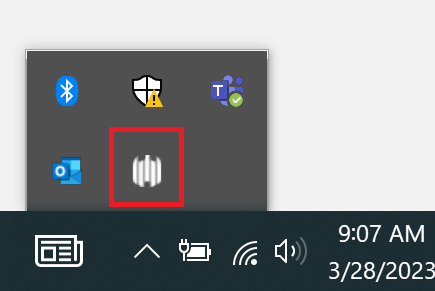
Yesterday TSS deployed a security update for Windows laptops called Sentinel. We have received several questions asking how you can tell if it has been installed. All computers who have Sentinel installed have an icon in the task bar area. It tells that agent successfully installed and it looks like the image (five white curved lines in a row at varying levels in height) in the picture below.

Have a great night! 

System Outage Update March 27, 2023

Good afternoon, 

Zoom Forum 

Tomorrow we are hosting another campus forum via Zoom at 10:00am PST. As we did last week, we will open the floor for operational questions. If you have a question you’d like to submit, please e-mail it to cchiappa@shoreline.edu by 9:00am tomorrow 3/28/23. 

New Security Software for Laptops 

Today TSS deployed a new security software on Windows laptops called Sentinel. You will see two (2) notifications on your laptop as this occurs indicating the deployment of Sentinel and another confirming when Sentinel is deployed.  

This update is for your laptop only. Please do NOT use your desktops at this time, and continue to leave them unplugged/without a power source.  

As a general guideline, TSS recommends rebooting your machine at least once a week. 

If you have questions about this, please contact support@shoreline.edu.  

One Drive 

We have received several questions specific to OneDrive. Please note that OneDrive Instructions have been updated for both Mac and Windows machines and can be found here. 

FAQS 

Our FAQs have been updated on the support.shoreline.edu site. We will continue to update them throughout the week. 

Have a great night! 

System Outage Update March 24, 2023

Good afternoon,

First of all, I want to say a huge congratulations to the faculty of our Nursing Program for graduating the largest class ever yesterday, with forty new nurses proudly walking across the stage!

Media Inquiries

Yesterday we had several media outlets visit campus, and we did issue a press release about the ransomware incident. As a gentle reminder, please note that all media inquiries or questions should be funneled directly through Cat Chiappa, our new Executive Director of Strategic Communications and Marketing. The reason for this is that the investigation is ongoing, and we want to make sure that we are streamlining all updates and communication for consistency.

Wi-Fi Hotspots

In other news, TSS has deployed Wi-Fi hotspots throughout campus and are working to make them as effective as possible. We hope to have a map showing their locations around campus early next week.

OneDrive

We have received several questions about how to restore a OneDrive, and detailed instructions can be found here

CybersecurityRecommendations

Many of you have asked about best practices for general cybersecurity. Here are a few recommendations to consider:

  • Remember to stay vigilant against suspicious communications. If you receive an email, text or phone call from a sender you do not recognize, do not respond, open the messageor download attachments. Only click on links or attachments from emails you trust. If you think you have received a suspicious communication, please let your supervisors know so that TSS may assist you.
  • Always use strong passwords. Strong passwords typically include a combination of letters, numbers, and symbols. Do not repeat or use the same passwords across accounts.
  • It is always advisable to regularly review and monitoryour accounts. If you notice any unusual activity, it is recommended that you contact that account institution immediately.

FAQs

Lastly, we received several great questions in today’s Zoom meeting. We will continue to update the FAQ list next week, and you can find the current iteration here.

Enjoy your weekend!

Jack Kahn

Systems Outage Update- March 23rd 9:00pm

Systems Outage Update March 23, 2023 

Good evening, 

Today I want to give you a couple of quick operational updates from our TSS team. 

Office Desktops: Please make sure that department desktops are powered down and unplugged.  Our settings will power the computers back on in the morning if they are not unplugged. 

Computer Peripherals and Accessories: If you need to work remotely, you may bring monitors, cables, or any other necessary technological accessory home to use with your laptop. Please make sure you notify your supervisor. 

Have a great night! 

Cat Chiappa 

Executive Director of Strategic Communications and Marketing 

support@shoreline.edu