Timesheets due tomorrow!

All Employees:

   Absences:

  • Absences for the pay period 3/1-3/15 must be completed by end of shift tomorrow, Thursday March 30, 2023
  • Supervisors must approve absences by 8am on Friday  3/31/2023
    • When submitting the following leave types please send an email to payroll@shoreline.edu
      • Shared Leave
      • Leave without Pay

Classified and Hourly/Student Employees:  

   Timesheets:

  • Timesheets must be completed by end of shift, Friday 3/31/2023.
  • Supervisor must approve timesheets no later than 10am, Monday  4/1/2023.  

Hourly/Student: Please submit your timesheet by end of shift Friday,  3/31/2023.

  • Please be sure to use the correct Time Reporting Code for your position
    • HRY for non-student hourly employees
    • STU for student hourly employees enrolled in 6 or more credits
    • STF for student hourly employees enrolled in less than 6 credits
    • FWS for federal work-study students
    • SWS for state work-study students

Classified: Please submit your timesheet by end of shift Friday,  3/31/2023.

  • Did you take leave during this last pay period?  Be sure to adjust your REG hours on your timesheet to reflect what hours you worked and were on leave.
  • Make sure each week equals your work schedule; 100% employee, then you should have a minimum of 40 hours posted between REG and any leave, 75% employee, then you should have a minimum of 30 hours posted between REG and any leave.  This includes any Leave without Pay posted.
  • Overtime to be charged to a budget other than the employees normal budget, please email the  combo code (not the chart string) to payroll@shoreline.edu
  • Did you work overtime and take leave in the same week?  Please email payroll@shoreline.edu until further notice.

Faculty: Please be sure to submit your sick leave through the absence management system, by the date listed above. You do not need to submit a timesheet.

Admin Exempt: Please be sure to submit your leave through the absence management system, by the date listed above. You do not need to submit a timesheet.

System Outage Update March 30, 2023 

Good afternoon, 

Today’s e-mail brings a few helpful and time sensitive updates from TSS, as well as the latest version of the FAQs. Please read the following carefully. 

Temporary Suspension of OneDrive app 

To avoid any disruption to individuals, TSS will temporarily be disabling the OneDrive app on all Windows machines starting Friday March 31, 2023 at 12:00pm. However, you may still access your OneDrive by visiting either www.onedrive.com or www.office.com 

Policy 4123- Employee E-mail Forwarding 

Effective Monday, April 3, 2023 at 8:00am, TSS will be turning off all automatic forwarding rules that forward emails to external, non-Shoreline.edu accounts.  

As a reminder, Shoreline Community College Policy 4123 requires employees to use their Shoreline email accounts, or other College-authorized means of digital communications, to conduct all electronic communication connected with official College business, including but not limited to communications with students, employees, state and local agencies, advisory boards, community organizations, contractors, or others affiliated with official College business. 

Shoreline.edu Reminder- Do Not Use Links 

While some links to the http://www.shoreline.edu website may appear to be working, please do not use them until further notice. 

Updated FAQS 

Our FAQs have been updated on the support.shoreline.edu site and can also be found as an attachment to this e-mail. You will find a lot of helpful answers about the upcoming spring quarter in there. 

Enjoy your evening! 

Campus Updates 03/30/23

EVENTS AND NEWS  

Good afternoon, folks, 

As you can imagine it has been a hectic week as we pivot to support everyone through this recent issue.  Once again, a HUGE thank you to TSS for all of their work this week.  The behind-the-scenes support was amazing.  As an FYI, several people including James Josleyn, Grant Hubbell, Devid Berner, Linda Du, Samira Pardanani, and Crystal Berry came together to create a mini-site with information for students to access support as they are registering for the spring.  Also big thanks to Rob Berg, Phillip King & Cat Chiappa for putting together new videos for students! You can find the links listed here! 

Please do not forget about our next Community Check-In, Thursday April 6th.  

Best, 

Jack 

Spring Quarter Updates 

ctcLink: 

  • How employees can change pronouns and sexual orientation/gender identity (SOGI) in ctcLink.  
  • How students can change sexual orientation/gender identity (SOGI) in ctcLink. 
  • How employees can find their W-2 in ctcLink. 

Human Resources 

Know someone who wants to join our team? Visit: Job Opportunities at Shoreline Community College 

Events and Updates 

Follow Shoreline Community College on social media! 

COVID-19 Updates   

Cases   

  • For the week of March 22 – March 29, the College only saw one positive case of COVID-19 reported. 
  • While the College website is down, please report COVID-19 symptoms, exposures, and positive test results directly to covidsupervisor@shoreline.edu. 

News 

Questions?      

Shoreline Community College MISSION – Our Purpose 

We serve the educational, workforce, and cultural needs of our diverse students and communities. 

System Outage Update March 29, 2023

Good afternoon, 

Today I have two important updates for you.  

Student Communication Sent Today 

This morning we sent out an e-mail to all students letting them know key details for the Spring Quarter. We also posted the content of the e-mail on Shoreline Today and sent a RAVE alert asking students to check their e-mail for an important update.  

These e-mails contain three video links tailored for different groups of students.  

  • One group is returning students, those who have taken classes at Shoreline before.  
  • Another is for new students who applied prior to March 20, 2023.  
  • The last is for those students who applied on, or after March 20, 2023.
    • These are students who came in after the ransomware incident and who don’t have access to a Canvas account yet. 

I want to say a huge thank you to Rob Berg and Phillip King for their willingness to try something new with this communication. Together we wrote a script, recorded it, and Rob was able to turn all three videos around in one day!  You can read the e-mail content here. 

Email Signature/Auto-reply/Voicemail 

Many of you have been asking for a script we can use for an away message or voicemail. Thank you for your patience while we have worked on this. Below, you will find approved messages you can use in your e-mail signature, voicemail, and auto-replies. 

Email Signature: 

The college has been affected by a ransomware incident that is temporarily impacting certain on-campus operations, so it may take longer to respond to your message. We deeply regret the inconvenience this has caused our Shoreline community, and we continue to work diligently to resolve this issue 

Auto-reply: 

The college has been affected by a ransomware incident that is temporarily impacting certain on-campus operations, so it may take longer to respond to your message. Your patience is appreciated. We deeply regret the inconvenience this has caused our Shoreline community, and we continue to work diligently to resolve this issue. We are committed to a culture of transparency and honesty in the Shoreline community and will continue to provide additional updates as appropriate. Please visit the Support website here for resources.

Voicemail*: 

Hello and thank you for calling Shoreline Community College. The college has been affected by a ransomware incident that is temporarily impacting certain on-campus operations, so it may take longer to respond to your message. Your patience is appreciated. We deeply regret the inconvenience this has caused our Shoreline community, and we continue to work diligently to resolve this issue. We are committed to a culture of transparency and honesty in the Shoreline community and will continue to provide additional updates as appropriate. Please visit the Support website here for resources. 

*If you need instructions for how to set up/change your voicemail, please see directions below. 

Have a great night! 

VOICEMAIL INSTRUCTIONS

Dialing into Voicemail

        From your desk

            Dial “5800” or press PHML button

            Press “#”

            Dial “xxxx” (your password) and “#”

        From another desk

            Dial “5800” or Press PHML button

            Dial “xxxx” (your extension no.) and “#”

            Dial “xxxx” (your password) and “#”

        From off campus

            Dial “546-5800”

            Dial “xxxx” (your extension no.) and “#”

            Dial “xxxx” (your password) and “#”

All of the features of the voicemail system can be accessed from off campus.  

Four Steps to Setting up Your Mailbox

        STEP 1:           Creating a Personalized Greeting (off-campus/on campus)

                        Dial into voicemail

                        Press “8” for “Answering Options”

                        Press “1” for “Personal Greetings”

                        Press “1” for “Change Regular Greetings”

                        Choices:           Press “1” for “External Greeting” OR

                                                Press “2” for “Internal Greeting”

                        Press “1” to “Record Greeting”, wait for tone and begin speaking.

                        Press “* #” to stop recording.

        STEP 2:           Personal Referral Extension (“0#” target)

A referral extension is where the caller will be transferred to if he/she decides to 0# out instead of leaving a voice mail.

                        Dial into voicemail

                        Press “8” for “Answering Options”

                        Press “3” for “Personal Referral Extension”

                        Press “1” to “Change Referral Extension”

        STEP 3:           Recorded Name

                        Dial into voicemail

                        Press “8” for “Answering Options”

                        Press “4” for “Record Name”

                        Press “1” to “Record Name”

        STEP 4:           Changing your Password (up to 24 digits)      

                        Dial into voicemail

                        Press “9” for “Mailbox Options”

                        Press “3” for “Password”            

            Note:    Passwords are confidential and should be changed regularly.

Leaving and Sending Messages

        Dial direct

            Dial extension number–leave message after the tone 

        Guest access (leaving a message without ringing a telephone)

            internal                                                            external

            Dial “5894” or “4464”                                         Dial “546-5894”

            Dial extension or name                                      Dial extension or name

            Press “#”                                                          Press “#”

            Leave message after the tone                            Leave message after the tone

        Record and send message through your personal mailbox

            Dial into voicemail

            Press “1” to Record

            Record message and press “* #” to stop recording

            Dial the extension(s) and “#”

            Press “#” when completed

            Press “#” for regular delivery

  • Transferring a caller to a voicemail box

Press the “transfer” button

Dial “4464”

Enter the extension number to transfer to

When prompted, hang up

Forwarding your phone to voicemail from your extension

This will allow a caller to go directly to your voicemail without ringing your phone.

Press # 91 4464

To cancel forwarding from your extension

Press ## 91

Student Artists Wanted

Greetings!

There are still spots open for these 2 AMAZING student opportunities! Please share with students!

STUDENT ARTISTS WANTED!

The Shoreline Art Gallery is proud to present One Planet: An Eco-focused Art Exhibition coming this Spring!

There are two opportunities for students who would like to showcase their talents in the Shoreline Art Gallery and gain the opportunity to work alongside a professional artist!

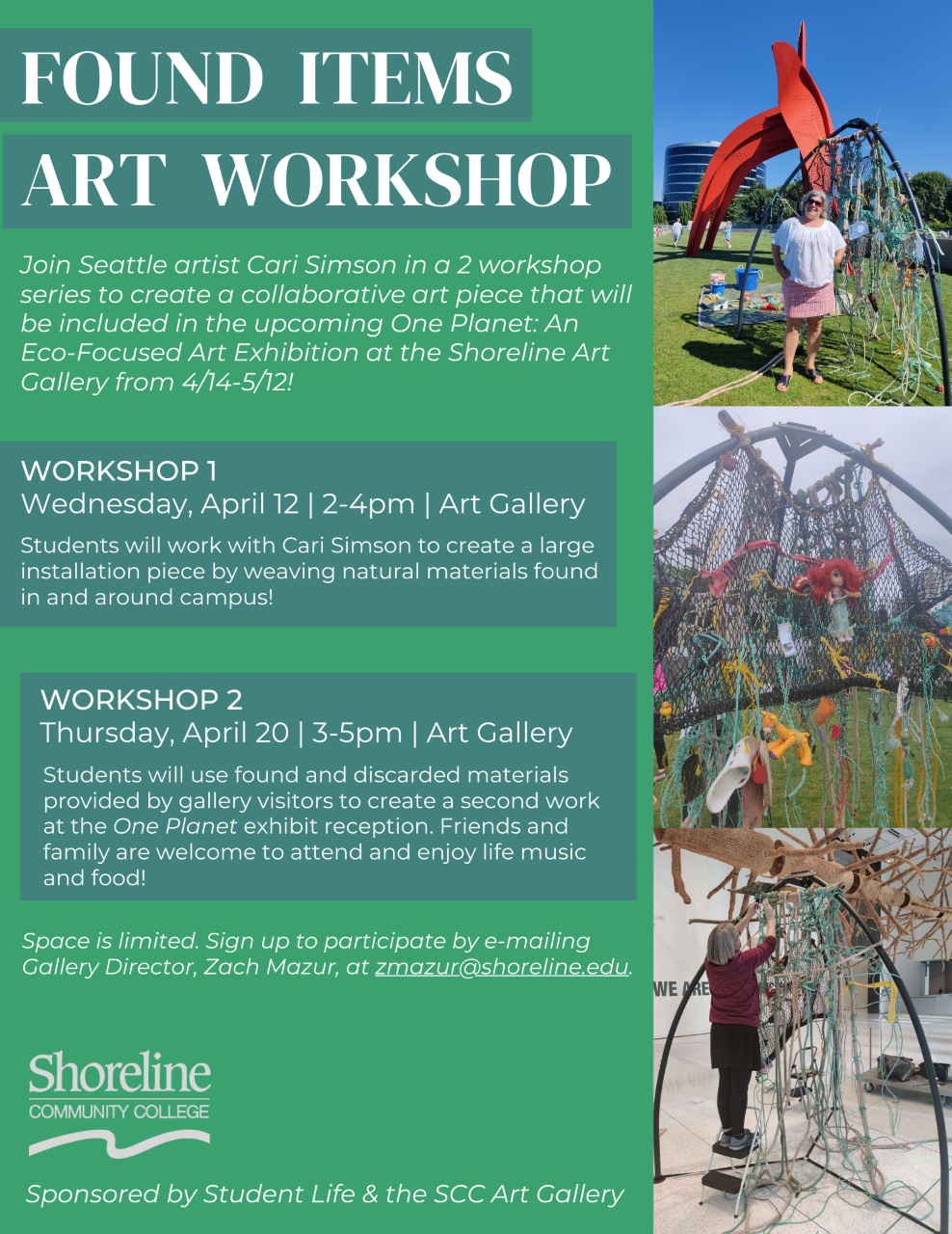
  1. FOUND ITEMS WORKSHOPS WITH SEATTLE ARTIST CARI SIMSON: Looking for students interested in collaborating with professional artist Cari Simson in a 2 workshops series where they will create a work of art and be featured in the upcoming One Planet exhibition.
  2. ONE PLANET: AN ECO-FOCUSED ART EXHIBITION: A call for student created artwork with eco-friendly themes for exhibition in the One Planet exhibition.

Students may apply to participate for one or both events! However, space is limited so be sure to encourage them to respond promptly! Please share the below attached announcements with your students!

Best,

Zach

Student opportunity
Call for submissions for an eco-focused art exhibition